Passenger Guide · Version 1.0

Your ride, your way. A pocket guide to XOOM.

Everything you need to know about reserving seats, posting carpool requests, sending parcels, and getting around Karachi smarter — one screen at a time.

Read time
8 minutes
Steps covered
8 essentials
City
Karachi
[ Table of Contents ]
STEP 01 / GET STARTED

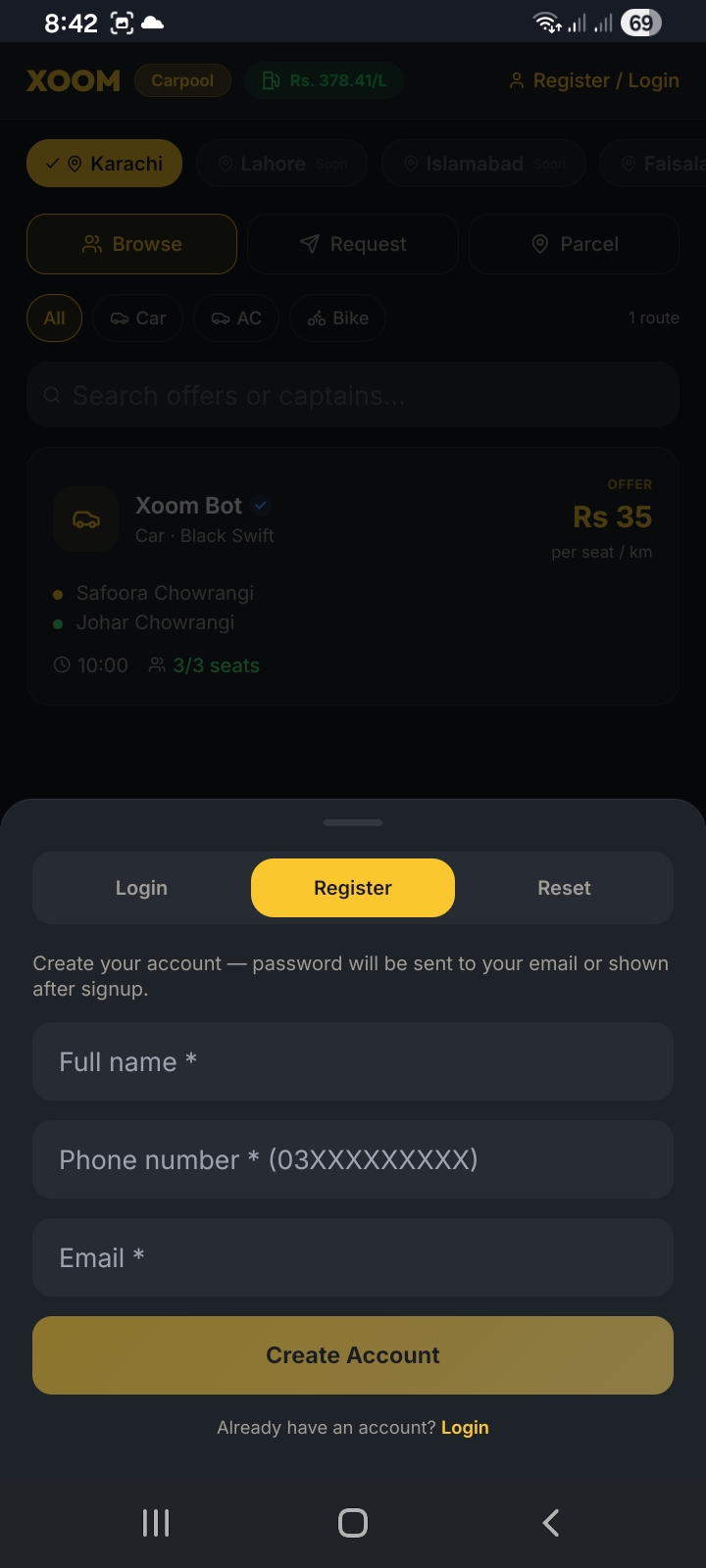
Create your account

Signing up takes less than thirty seconds. No passwords to remember up front — XOOM emails one to you (or shows it on screen) right after registration.

  1. Open the XOOM app and tap Register / Login in the top right corner.
  2. Switch to the Register tab in the bottom sheet that slides up.
  3. Enter your full name, phone number (format: 03XXXXXXXXX), and email.
  4. Tap Create Account — your password will arrive by email or appear on screen.
Heads upSave your password somewhere safe. You'll need it every time you log in on a new device.
Sign Up XOOM registration screen
STEP 02 / ACCESS

Login when you return

Already registered? Coming back is just as quick. The same bottom sheet handles login, registration, and password resets — all in one place.

  1. Tap Register / Login in the header.
  2. Stay on the Login tab (it's selected by default).
  3. Enter the phone number and password you registered with.
  4. Forgot your password? Tap Reset to receive a new one by email.
Pro tipOnce logged in, your name appears in the top right (e.g. "Hasan Iqbal") — that's how you know you're in.
Login XOOM login screen
STEP 03 / DISCOVER

Browse available routes

The Browse tab is your front door to every active carpool offer in Karachi. Filter by vehicle type, search for a specific captain, or scan the list for routes that match your commute.

  1. Tap the Browse tab on the main screen.
  2. Filter by vehicle: All, Car, AC, or Bike.
  3. Use the search bar to find specific captains or routes by name.
  4. Each card shows the captain, vehicle, route, departure time, seats available, and the price per seat per kilometer.
Look forThe green seat counter (e.g. "3/3 seats") tells you how many spots remain. Tap any card to open the reservation flow.
Browse XOOM browse routes screen
STEP 04 / BOOK

Reserve your seat

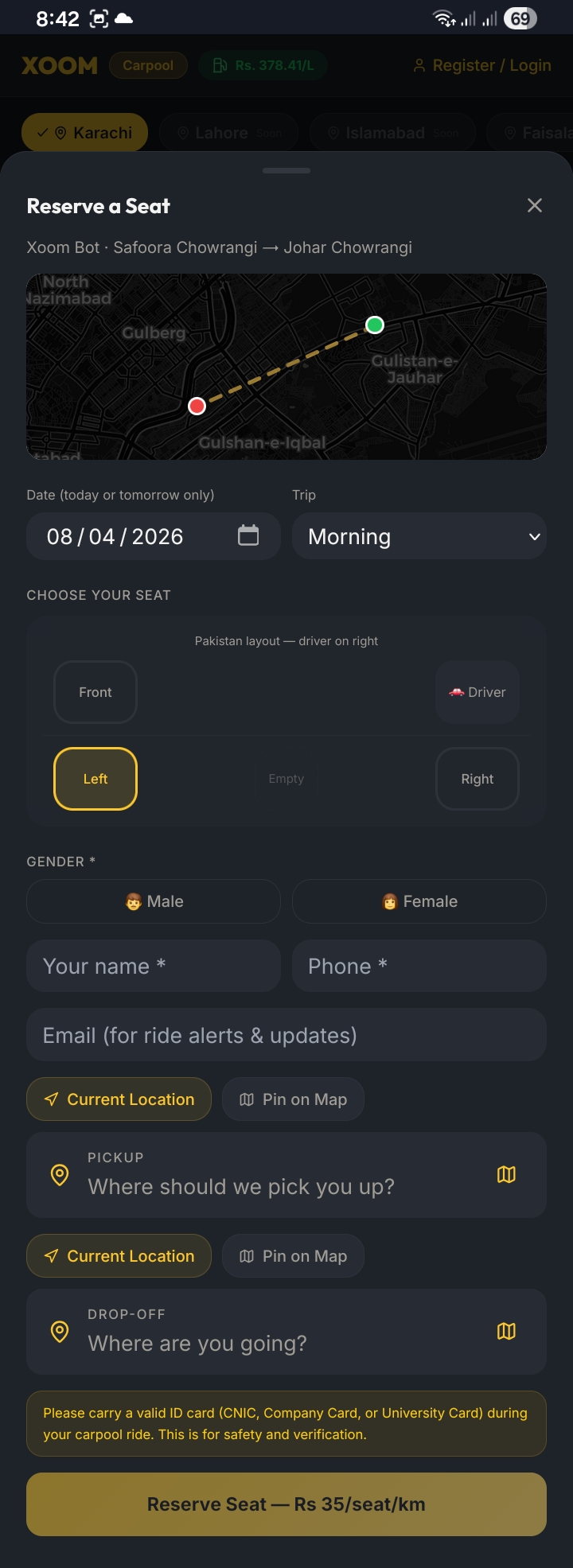
Found a route you like? Reserving is a guided flow with a live route map, seat picker, and pickup pinning — all in one bottom sheet.

  1. Tap any route card to open the Reserve a Seat sheet.
  2. Pick your date (today or tomorrow only) and trip time (Morning / Evening).
  3. Choose your seat using the Pakistan-layout seat picker — Front, Left, Right.
  4. Select your gender, then enter your name, phone, and optional email.
  5. Set your pickup and drop-off using Current Location or Pin on Map.
  6. Tap Reserve Seat — you'll see the rate (e.g. Rs 35 per seat per km).
ImportantCarry a valid CNIC, Company Card, or University Card during your ride for verification.
Reserve XOOM reserve seat screen
STEP 05 / REQUEST

Post a ride request

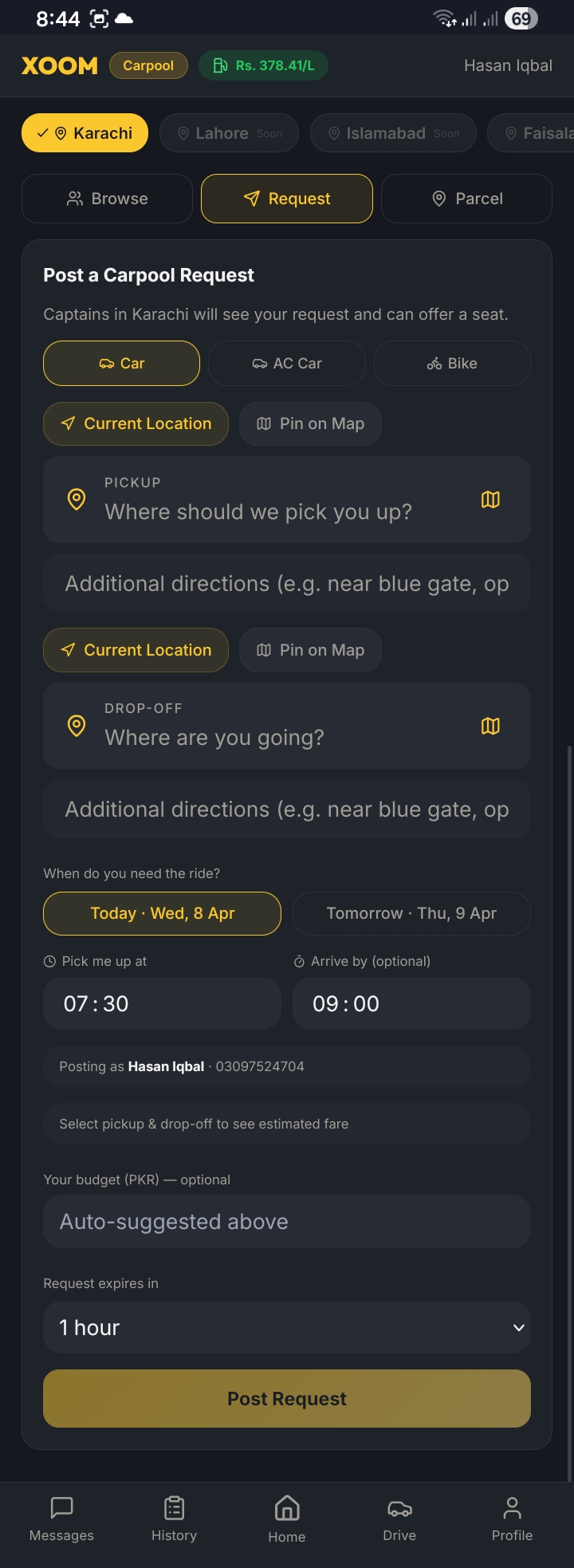
Don't see a route that matches? Post your own request and let captains in Karachi come to you. Perfect for off-route commutes or one-off trips.

  1. Tap the Request tab in the main navigation.
  2. Choose your vehicle preference: Car, AC Car, or Bike.
  3. Set your pickup and drop-off — add directions like "near blue gate" if needed.
  4. Pick the day: Today or Tomorrow, and your departure window.
  5. Optionally set a budget in PKR (the app auto-suggests a fair fare).
  6. Choose how long your request stays active (e.g. 1 hour), then tap Post Request.
Why this worksCaptains driving similar routes get notified and can offer you a seat directly — no more waiting for the perfect listing.
Request XOOM post a request screen
STEP 06 / DELIVER

Send a parcel

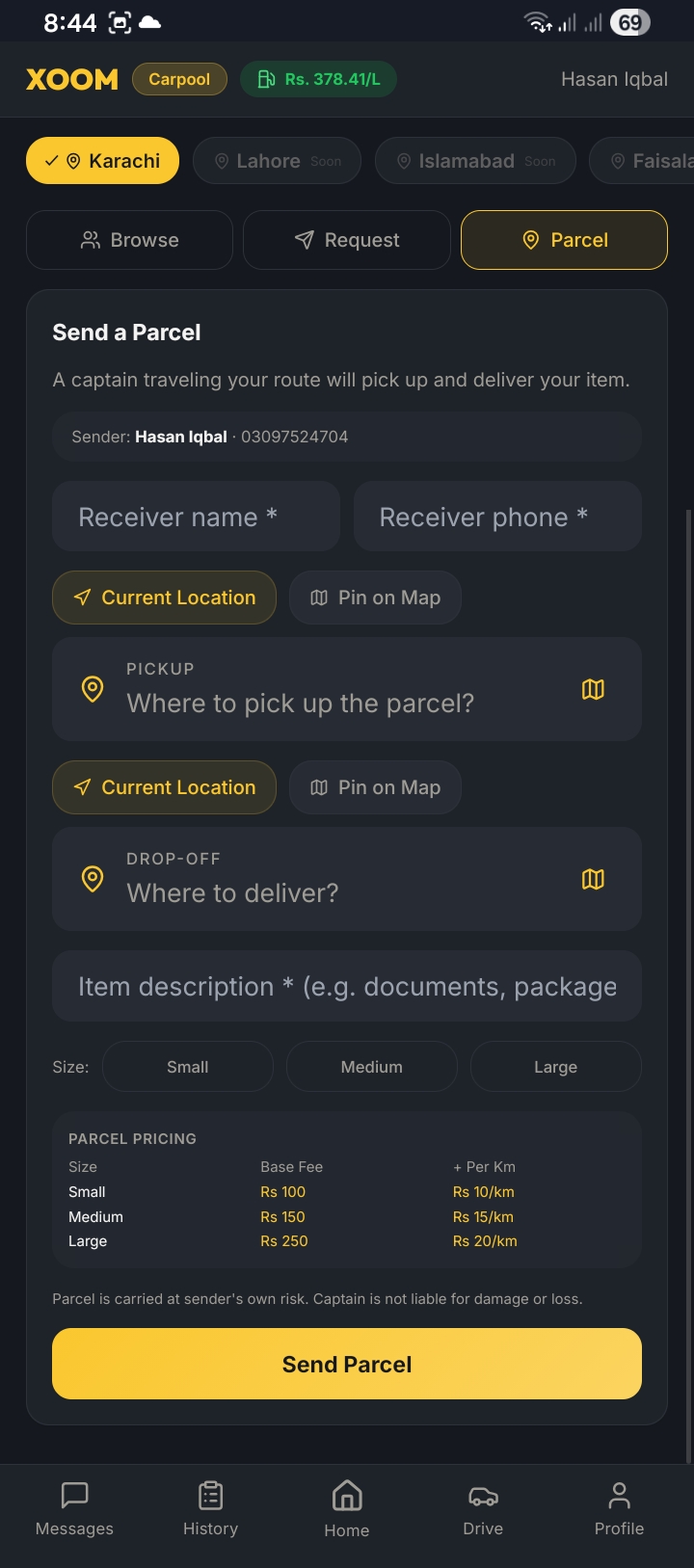
XOOM isn't just for people. A captain traveling your route can pick up and deliver documents or packages — fast, cheap, and city-wide.

  1. Tap the Parcel tab in the main navigation.
  2. Enter the receiver's name and phone number.
  3. Set the pickup and drop-off locations.
  4. Add an item description (e.g. documents, package).
  5. Pick a size: Small (Rs 100 + Rs 10/km), Medium (Rs 150 + Rs 15/km), or Large (Rs 250 + Rs 20/km).
  6. Tap Send Parcel to publish to nearby captains.
DisclaimerParcels are carried at the sender's own risk. Captains aren't liable for damage or loss, so don't ship anything fragile or irreplaceable.
Parcel XOOM send parcel screen
STEP 07 / TRACK

History & messages

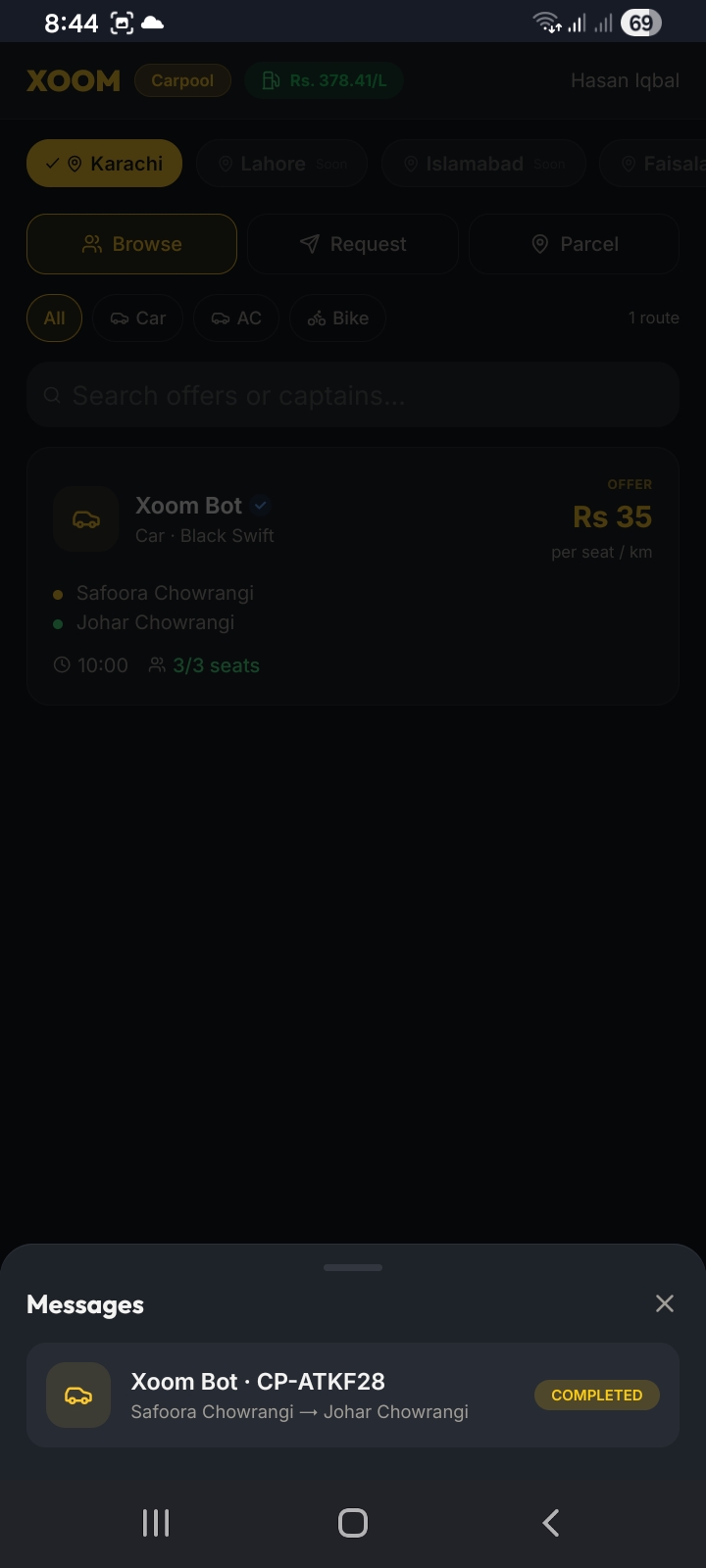
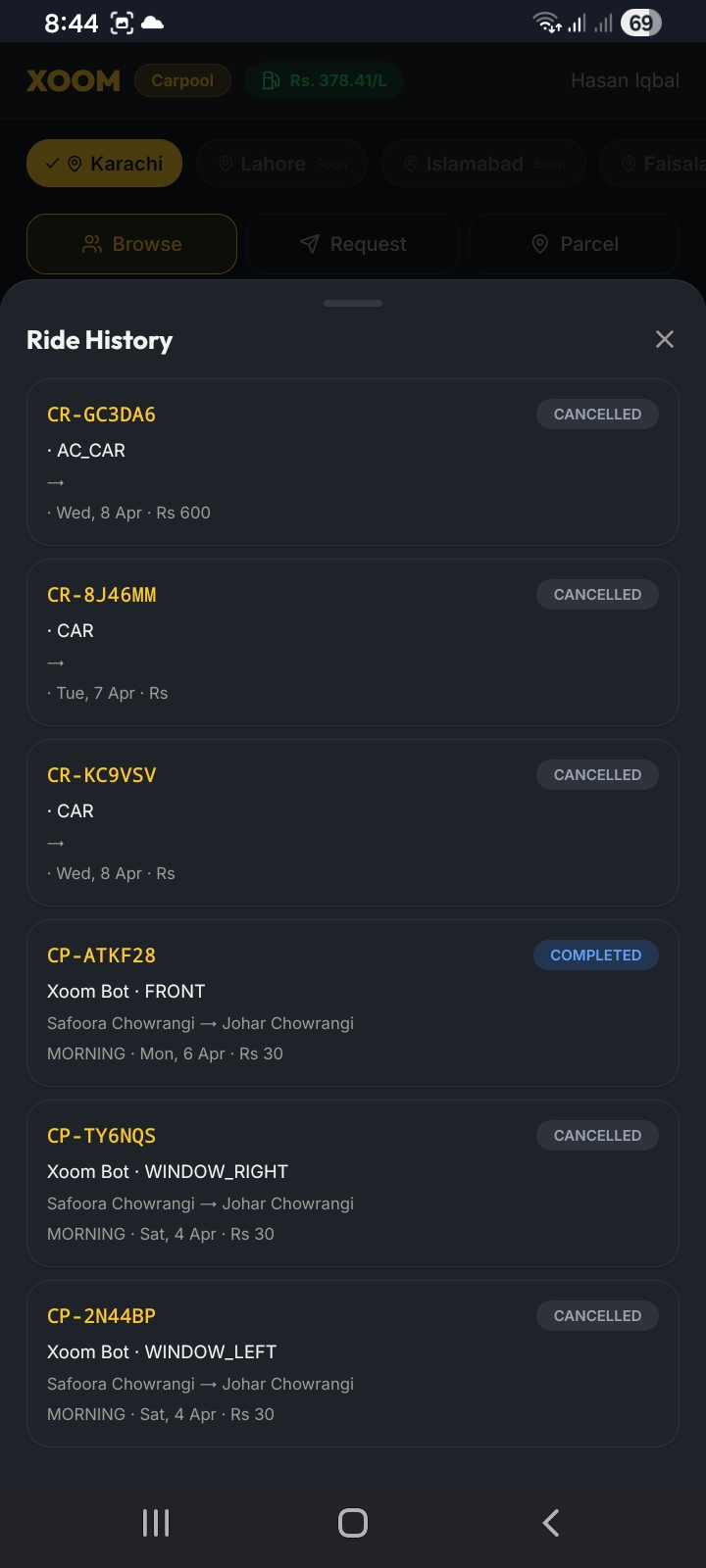
Every ride you've ever booked, every captain you've ever messaged — all in two taps from the bottom navigation bar.

  1. Tap History in the bottom nav to see every ride you've booked, requested, or posted.
  2. Each entry shows a unique ride code (e.g. CP-ATKF28), the route, fare, and a status badge: COMPLETED, CANCELLED, or active.
  3. Tap Messages in the bottom nav to chat with captains about your bookings.
  4. Each message thread is tied to a specific ride code, so you'll never lose track of which conversation belongs to which trip.
Useful forReordering a regular commute, disputing charges, or sharing a ride code with a friend joining the same trip.
History XOOM ride history screen
STEP 08 / EARN

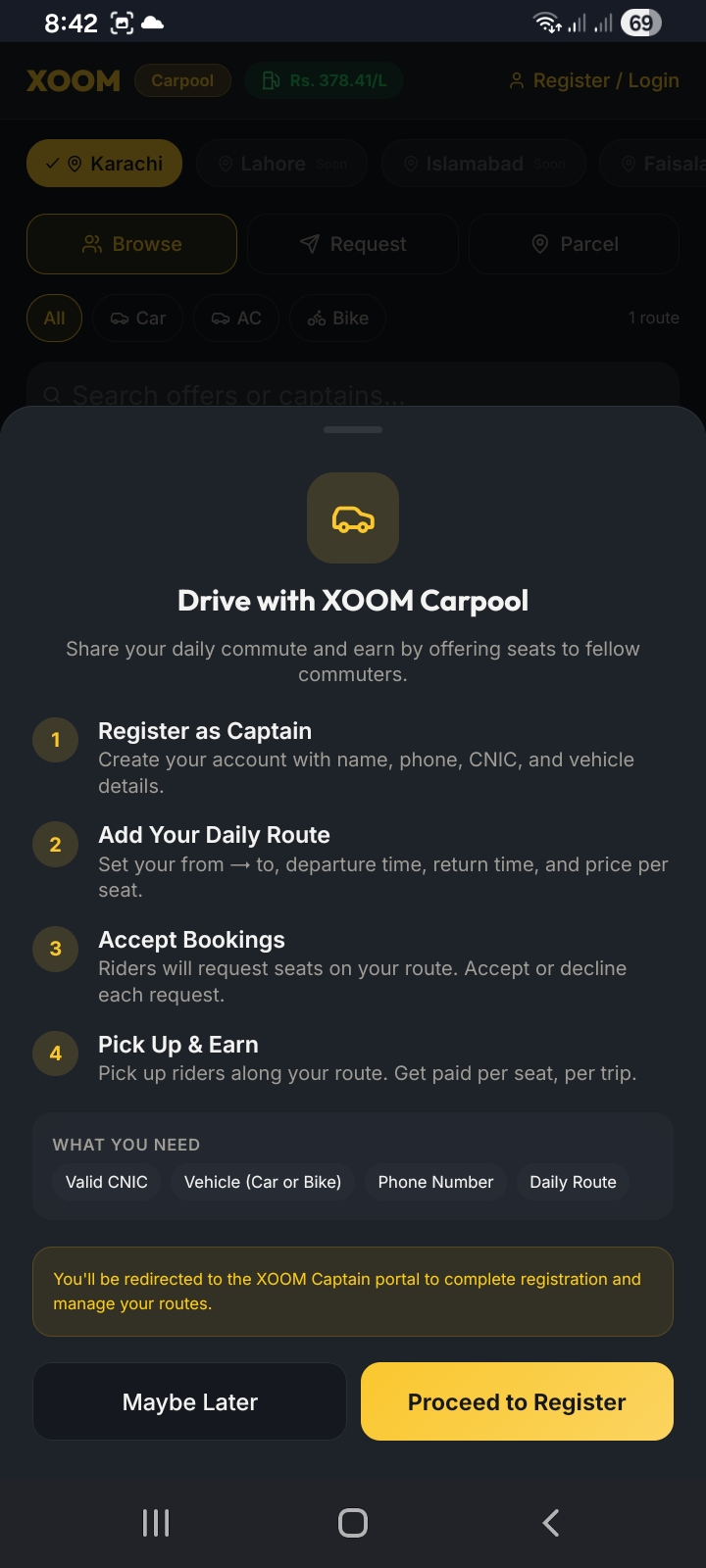
Drive with XOOM

Already commute the same route every day? Become a Captain, share your seats, and turn your daily drive into income.

  1. Tap the Drive icon in the bottom nav to see the Captain onboarding flow.
  2. Register as a Captain with your name, phone, CNIC, and vehicle details.
  3. Add your daily route — set from/to, departure time, return time, and price per seat.
  4. Riders will request seats on your route — accept or decline each request.
  5. Pick up riders along your route and get paid per seat, per trip.
Ready?Check out the Captain Guide for the full walkthrough on setting up routes, managing rides, and earning daily.
Drive XOOM drive with us screen